Games with no ads or in-app purchases: how to check before you install
The quickest way to find a game with no ads and no in-app purchases is to check three things before you commit to it: the small labels next to the Install button on Google Play, the Data safety section further down the page, and whether the game still plays in airplane mode.
A game that passes all three is very likely clean. Below is what each check actually tells you, where each one falls short, and how the game we make, Ant Zigzag, holds up against them.
Why these games are hard to find
Most free games pay for themselves with ads, with purchases, or with both. That is a fair way to run a business, but it means "free" on its own says nothing about what you will see once you start playing.
Searching doesn't help much either. When we searched Google Play for "offline games no ads" in October 2026, the first two results carried the "Contains ads" label on their own store pages. On the web, many of the lists for this kind of search are thin, automatically written pages that repeat the same few titles without saying how anything was checked. So it is worth knowing how to check a game yourself.
What the two Play labels tell you
Under the app name on a Google Play page you may see "Contains ads", "In-app purchases", or both.
"Contains ads" comes from a declaration the developer makes in Play Console. Google's help page for developers says it covers ads served through third-party ad networks, banners, interstitials, native ads that look like regular content, and "house ads" that promote the developer's other apps. Google says it may check the declaration and show the label itself if it finds ads. Rewarded videos (watch an ad to get a bonus) are still ads, so a game that has them should show the label.
"In-app purchases" means you can pay for something inside the game: coins, levels, a season pass, or a "remove ads" upgrade. A game that shows ads until you pay to remove them will usually carry both labels.
What the labels don't cover. The same help page says the ad label is not meant for offers to buy upgrades inside the app. A game can push its own store at you on every screen and still have no ad label. The label also says nothing about how often ads appear. A banner on the menu and an unskippable video after every round get the same two words.
So the labels are a good first filter: if neither appears, that's a strong start. They are not the whole answer.
Words in a listing that need a second look
Store descriptions often say "no ads" in a way that is true for some players and not for others. Read slowly when you see:
- "No forced ads" or "no interstitials": there are probably optional ads, such as rewarded videos.
- "Ad-free with Premium" or "Remove ads": the free version has ads.
- "Play offline" next to an ads label: ads may only stop when you are disconnected.
- Energy, lives or timers in the screenshots: these systems are usually there so that you pay or watch an ad to keep playing.
None of this makes a game bad. It just means it doesn't match "no ads and no in-app purchases".
The airplane-mode test
This takes five minutes and catches more than any label. Install the game, open it once while you are online, then switch on airplane mode and play a few rounds.
Pay attention to:
- Does it start at all? Some games stop at a loading screen or ask you to connect.
- Are features locked? Daily rewards, shops or whole modes may be greyed out offline. That tells you which parts depend on a server.
- Are there empty boxes or pauses? Gaps where a banner should be, or a pause after each round, usually mean the game is trying to load an ad.
- Does progress stick? Close the game fully, reopen it, and check that your levels are still there.
A game built to work offline will behave the same way with or without a connection. If you are testing games for a flight, our post on games to play on a plane without Wi-Fi turns this into a night-before checklist.
Read Data safety and the low reviews
Further down the Play page, the Data safety section shows what the developer says the app collects and shares. Ad networks and analytics tools need data to work, so a long list here, especially device or other IDs, is a hint that something besides the game is running. A short list doesn't prove anything on its own, but it should match what the description promises.
Then sort the reviews to show one- and two-star ratings first and skim for words like "ads", "pay", "energy" or "wifi". Players are quick to complain when a game changes after an update, and those reviews are often newer than the description.
Paying once is the other route
If you mostly want no interruptions, a premium game you buy once is often the simplest answer. Before paying, check that the "In-app purchases" label isn't there as well, because some paid games still sell extras.
How Ant Zigzag holds up against these checks
We make Ant Zigzag, so take this as the developer's account, not a review. It is a short-round action game: you steer one ant, Kim, around an arena and win by ramming the back half of other ants while avoiding their heads. You steer by touch and drag with one finger. If you want the full rundown of how it plays, see ant games that aren't colony sims.
Against the checks above:
- Ads and purchases. There is no ad code and nothing to buy. Upgrades are paid with sugar that you only earn by playing. In Play Console we declared that the app contains no ads.
- Airplane mode. The game code makes no network requests, so every one of the 50 levels plays the same way offline. Progress is saved on your device.
- Data safety. No analytics, no tracking tools, no sign-in. The Play declaration says no data is collected or shared, which matches our privacy policy.
- No energy or lives. When you lose, you retry right away.
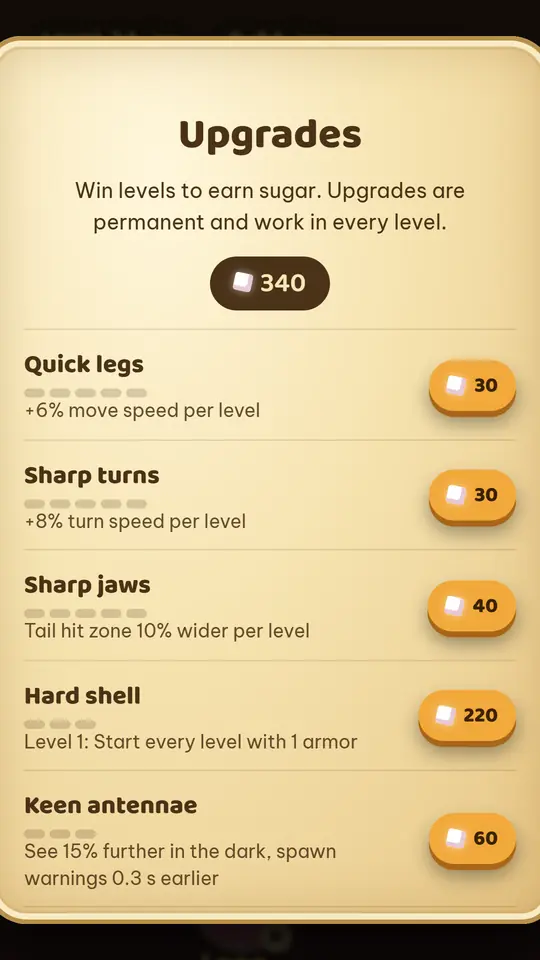
What it doesn't have: no online play, no playing with friends and no leaderboard. The story and menus are in English and Vietnamese. The app's start screen also shows a few tiles for other game ideas; those games aren't made yet and can't be played.
How to try it
Ant Zigzag: Kim Saga is free on Google Play for Android, so you can run every check in this post on its store page yourself. You can also play the same game for free in your browser. On iPhone, open it in Safari and tap Share, then Add to Home Screen; it works offline after the first visit, so the airplane-mode test applies there too.
Read more
- Ant games that aren't colony sims: how Ant Zigzag plays
- Games to play on a plane without Wi-Fi: how to make sure they work
- Game offline không quảng cáo cho cả nhà (in Vietnamese: five checks for parents before installing a game)
- Ant Zigzag privacy policy