Offline games without Wi-Fi or data: how to check a game won't use up your load
An offline game that needs no Wi-Fi or mobile data is one that ships everything inside the install: levels, sound, your saves, and nothing it has to fetch while you play. The store page rarely tells you that clearly. The good news is that Android already tracks how much data each app uses, so you can check any game in a few minutes instead of guessing.
Whether your plan calls it load, kuota or just data, the steps below are the same: see which games are using data, stop the ones you don't want online, and keep updates on Wi-Fi. We make an offline game ourselves, Ant Zigzag, and there is a section on it near the end, written as the developer's account rather than a review.
Where an "offline" game can still use data
A game can play offline and still spend your data whenever a connection is there. The usual reasons:
- Ads. Every ad is downloaded when it's shown. Video ads between rounds cost more than a small banner, and they arrive whether or not you watch them.
- Downloads after install. Some games install small and pull extra levels, art or voice files the first time you open them, or when a new season starts.
- Updates. Big games update often, and the Play Store may run those updates on mobile data unless you tell it not to.
- Background activity. Cloud saves, notifications, events and analytics can run while the game sits in the background.
None of these show up as "online only" on a store page. That's why checking the phone itself works better than reading the description.
Step 1: See how much data each game has used
Android keeps a per-app count of mobile data. On a Pixel, open Settings, tap Network & internet, then SIMs, then App data usage. On Samsung phones it is under Settings > Connections > Data usage > Mobile data usage. Other brands use similar names; searching "data usage" in Settings usually finds it.
Look at the games you play most. A game that shows close to zero after a week of play is genuinely offline. A game that shows a lot is pulling ads, downloads or sync, even if it never asked for a connection.
If you want a clean test for one game, note its number, play it for half an hour with mobile data on, then check again.
Step 2: Try it with data and Wi-Fi off
Turn off mobile data and Wi-Fi (airplane mode does both, but check that Wi-Fi stayed off). Close the game fully from the recent apps screen, open it again, play a level, close and reopen to see that your progress was saved. If it reaches the menu, plays and keeps your progress, it doesn't need a connection. Our airplane-mode test for flights goes through this step by step.
Do the first launch of any new game on Wi-Fi. That's when extra downloads usually happen.
Step 3: Stop a game from using data in the background
You can keep a game from going online when you aren't playing it:
- Per app. On a Pixel, open Settings > Apps, pick the game, tap Mobile data & Wi-Fi and turn off Background data. On Samsung, the switch is Allow background data usage, under the app's Mobile data page.
- Data Saver. Android has a Data Saver mode (since Android 7.0) that blocks background data for most apps at once. On a Pixel it sits under Settings > Network & internet. You can still allow the apps you rely on, like messaging.
Some games refuse to start or show errors when background data is blocked. If that happens, you've learned that the game depends on a connection.
Step 4: Keep store updates on Wi-Fi
Open the Play Store, tap your profile picture, go to Settings > Network preferences, and set Auto-update apps to Over Wi-Fi only. Set App download preference to Over Wi-Fi only or Ask me every time too, so a large game doesn't download on mobile data by surprise.
When you choose a new game, it helps if it has no ads at all, since ads are the one thing that costs data every session. Our guide on games with no ads or in-app purchases shows how to check the labels on Google Play before you install.
A note on older phones
Using no data and running smoothly on an older phone are two different things. The download size on the store page tells you about storage, not about how well a game plays on your phone. The honest way to find out is to install it, play a few levels, and uninstall if it stutters or gets hot.
We haven't yet measured Ant Zigzag on low-end Android phones, so we're not going to call it lightweight. If you try it on an older phone, we'd like to hear how it runs: [email protected].
If storage is your bigger worry, offline games with low MB shows how to check what a game really takes on your phone after install, and how to clear space without losing your progress.
Where Ant Zigzag fits
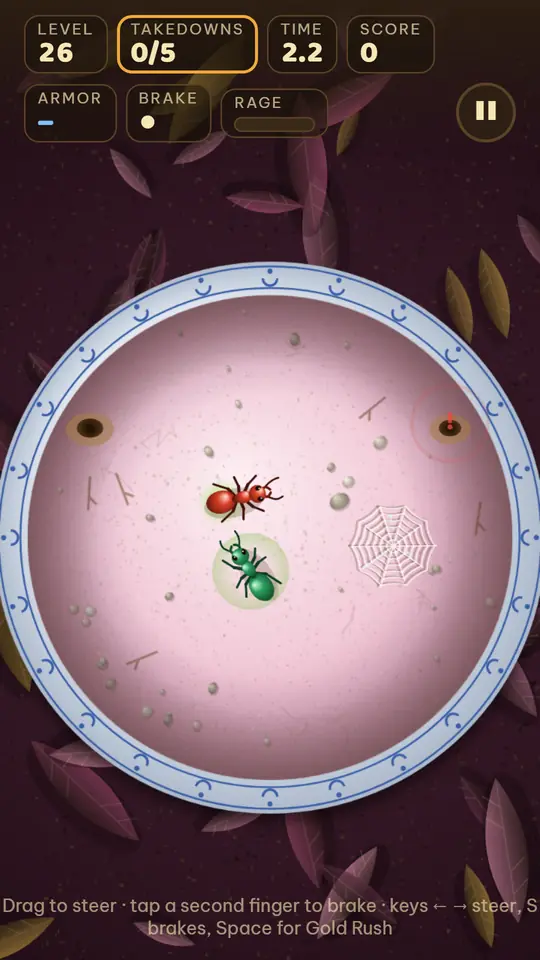
Ant Zigzag is a short-round action game. You steer one ant, Kim, with one finger and win by ramming the back half of other ants while staying away from their heads. There are 50 levels across 5 lands, with bosses and special levels. The full rundown is in ant games that aren't colony sims.
How it does against the checks above:
- No network requests. The game code doesn't go online at all, so there's nothing to fetch during play and nothing running in the background.
- No ads, no in-app purchases, no sign-in. Upgrades are paid with sugar you earn by playing.
- Progress stays on your phone. No cloud save, no account.
Where it does use data:
- The first visit to the web version downloads about 2.6 MB of files, everything the game needs. We measured that on October 19, 2026; more than half of it is the background music. After that it plays offline.
- Updates. If you open the web version while online and we've released an update, the new version downloads in the background. Each update can download up to the same 2.6 MB again.
- The Android app uses data only when Google Play downloads or updates it. With Play Store updates set to Wi-Fi only, as above, it won't touch your mobile data.
How to try it
Ant Zigzag: Kim Saga is free on Google Play for Android. Install it on Wi-Fi, then turn off data and play. You can also play the same game in your browser: open it once on Wi-Fi so the whole game is saved on your phone, then turn off data and play. On iPhone, the iPhone guide shows how to add it to your Home Screen.
The browser version saves progress in that browser, and it doesn't carry over to the Android app.
Read more
- Offline games with low MB for Android: how to check the real size before you install
- Games to play on a plane without Wi-Fi: how to make sure they work
- One-hand games for Android that work offline: what to check before your commute
- Games with no ads or in-app purchases: how to check before you install
- Ant games that aren't colony sims: how Ant Zigzag plays
- How to play Ant Zigzag on iPhone